From SQL row to inbox, in seven steps.
Follow a real example — an Order Is Ready notification that fires the moment a sales order is marked ready for pickup — from template design to delivery.
One dashboard for the whole pipeline.
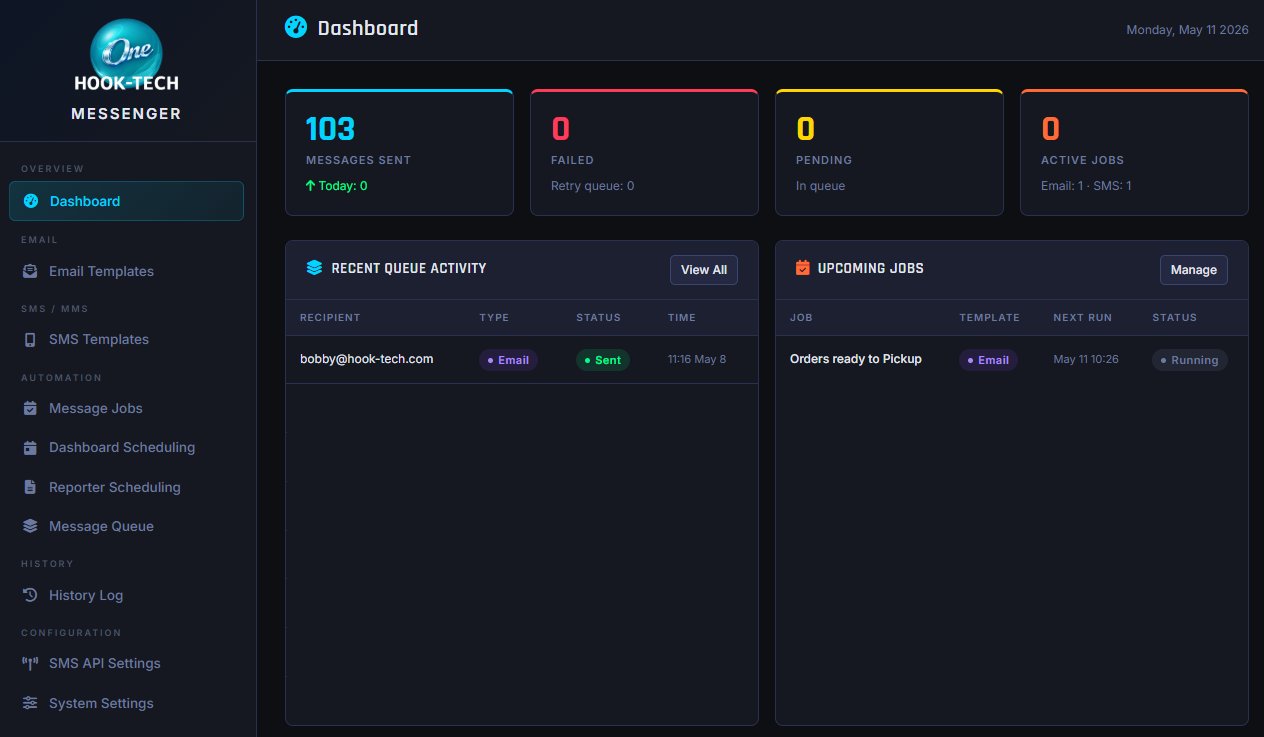
The Messenger dashboard shows everything at a glance — messages sent today, failed deliveries with a retry queue, pending messages still in the queue, and active jobs broken out by channel (Email / SMS).
A live Recent Queue Activity feed tracks every send with recipient, type, status, and timestamp. Upcoming Jobs shows what's scheduled next with template, next run time, and current state. The sidebar holds everything else — templates, jobs, queues, history, and configuration.
Name it, query it, address it.
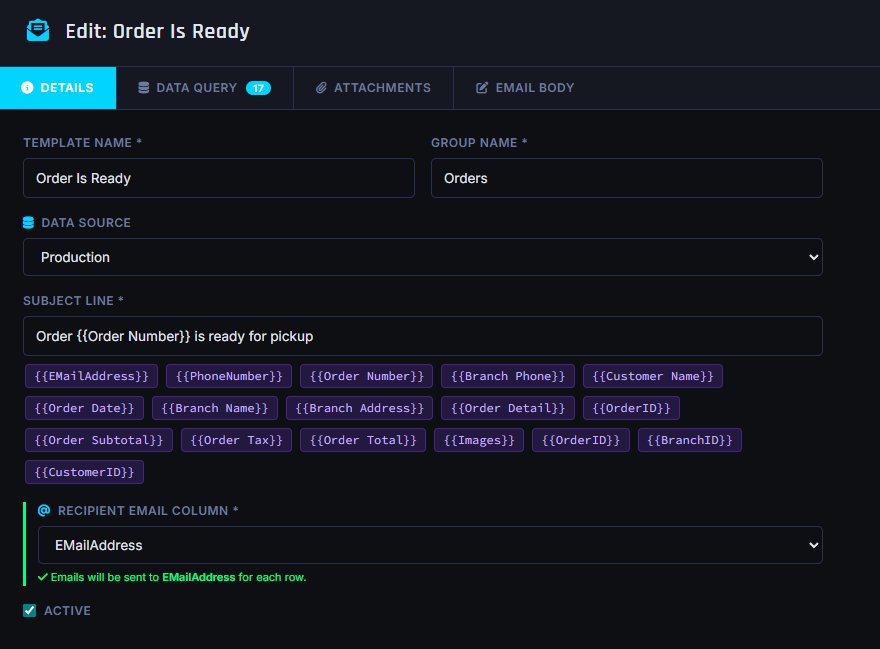
Every job opens in a tabbed editor — Details, Data Query, Attachments, and Email Body. On Details, set the Template Name, group it (e.g. Orders), pick a Data Source, and write the Subject Line.
Once your SQL query is written on the Data Query tab, Messenger parses every field from the result set and surfaces them as merge-field chips you can click into your subject and body. The Recipient Email Column dropdown picks the column to send to — Messenger sends one email per row.
The Attachments tab handles file attachments — upload static files, or attach files dynamically by file path from a query column (e.g. delivery proof images attached to a delivery-confirmation email).
A visual designer — or paste your own HTML.
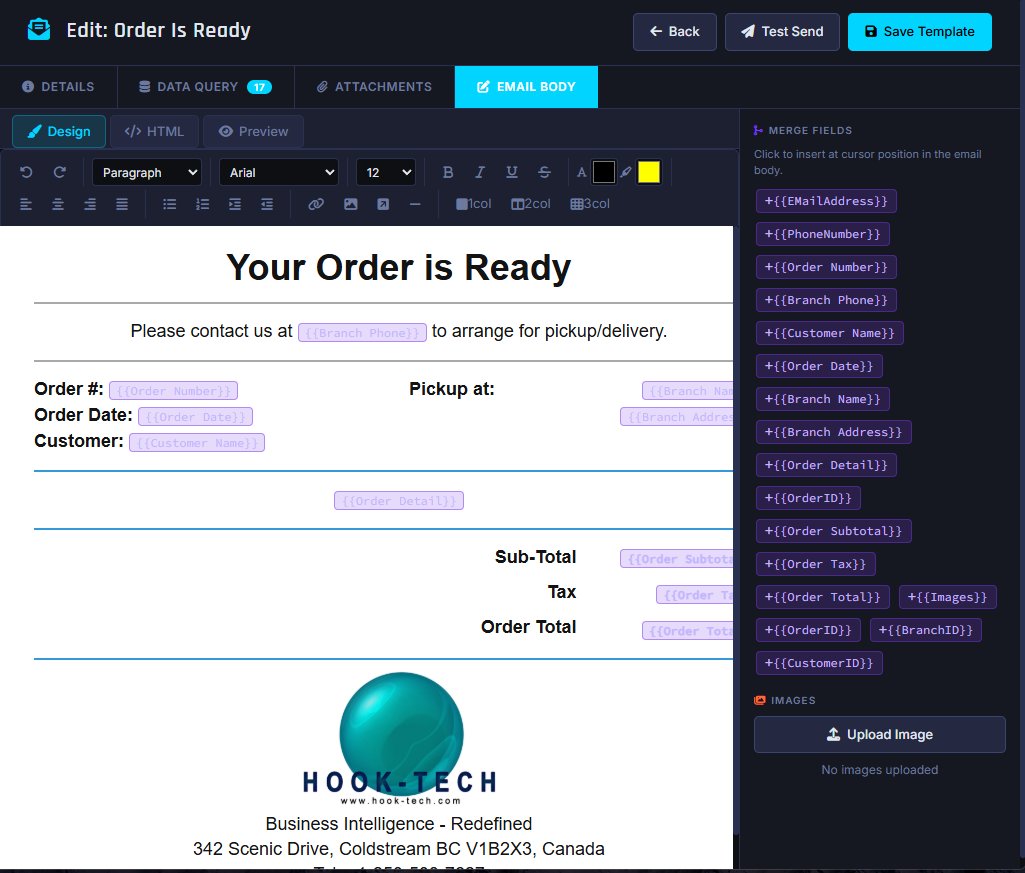
Switch to the Email Body tab and you're in a full visual designer — paragraphs, fonts, colors, alignment, lists, tables, columns, links, images. Build the layout from scratch, or jump to the HTML view and paste a template from anywhere else.
The Merge Fields panel on the right lists every field your SQL query returned. Click one to drop it at the cursor and it renders as a chip — {{Order Number}}, {{Branch Phone}}, {{Customer Name}} — that gets replaced with the row's data when Messenger sends. Test Send fires a one-off to your address to verify the merge.
The same job, as an SMS.
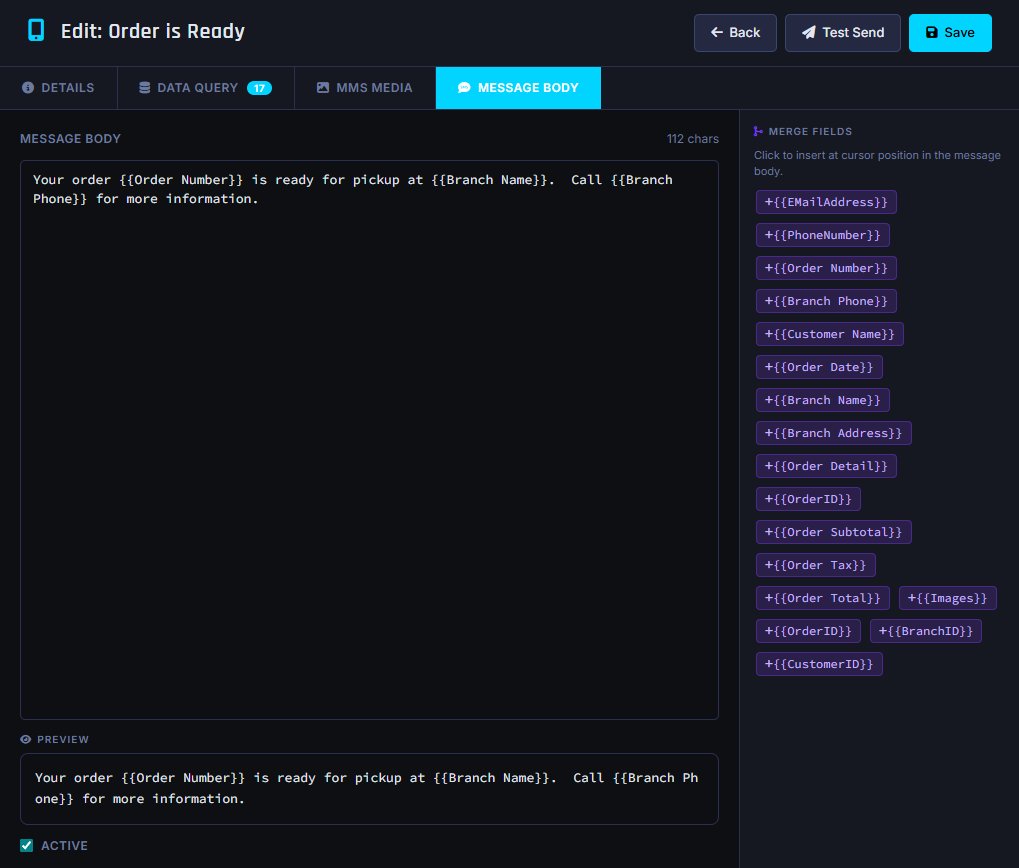
SMS templates work the same way. Write a Message Body, click merge fields to drop them in, and Messenger counts characters and SMS pages live as you type so you know exactly what the customer will receive — "Your order {{Order Number}} is ready for pickup at {{Branch Name}}. Call {{Branch Phone}} for more information."
A built-in Preview renders the message with sample data from your query so you can see the merged output before you send. Messenger delivers SMS through ClickSend, Twilio, or Prokeep — whichever your business already uses.
Switch to MMS for images.
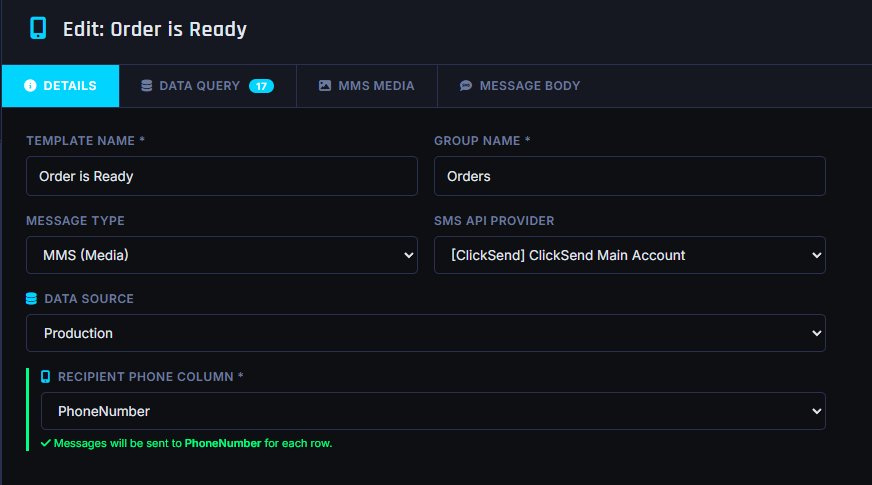
Flip Message Type from SMS to MMS (Media) and an extra MMS Media tab appears in the editor. The SMS API Provider dropdown shows which platforms support MMS — currently ClickSend.
Everything else stays the same: same Data Query, same merge fields, same per-row sending. You're just adding media to the message.
Static, dynamic, or auto-generated.
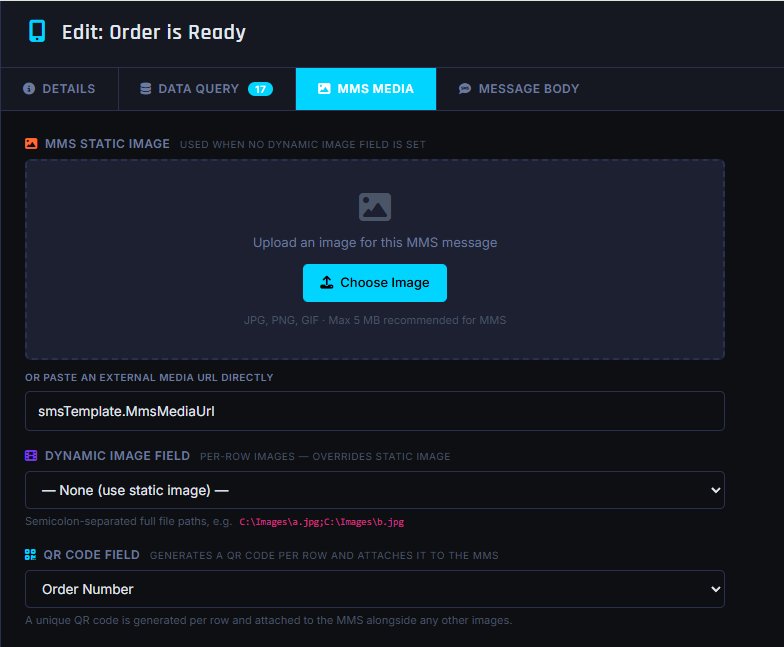
The MMS Media tab gives you three ways to include media. MMS Static Image uploads a single image used for every send — a logo, a product photo, a promo banner. Or paste an external media URL directly.
Dynamic Image Field pulls a per-row image from your query — supply a column of file paths and Messenger attaches the right image to each message. Great for things like delivery proof photos or per-product imagery.
QR Code Field generates a QR code from any query field and attaches it automatically. Send {{Order Number}} as a scannable code so customers can present it at pickup — "Your order is ready. Show this QR code at the counter."
Not just messages — PDFs from Vision-AI and Reporter, and Excel/CSV from Grid.
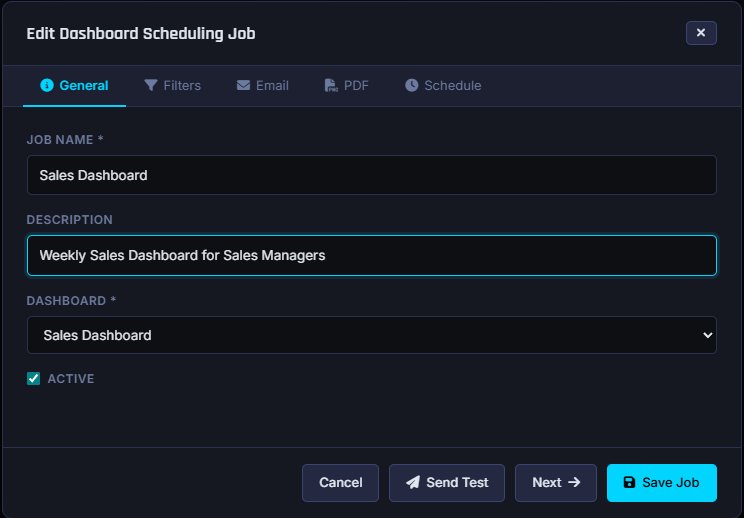
Messenger isn't just for templates you build inside it. Dashboard Scheduling Jobs let you pick a dashboard from Vision-AI, set the filters, choose recipients, and schedule the run — Messenger renders the dashboard as a PDF and emails it on cadence.
Reporter Scheduling Jobs do the same thing for reports built in Reporter — pick the report, set filter values, pick recipients, set the schedule. Daily sales summaries, weekly inventory snapshots, month-end performance — all on autopilot.
Grid Scheduling Jobs allow Excel/CSV scheduling for grids built in Grid — pick the grid, set filter values, pick recipients, set the schedule.
Every job type — Email, SMS, MMS, Dashboard, Reporter, Grid — goes through the same tabbed editor: General, Filters, Email recipients, PDF options, Schedule.